User Guide
About FitFlow
Managing clients as a personal trainer is never easy. Beyond conducting workouts, trainers must juggle scheduling, track client progress, consider individual goals and medical histories, and ensure each client gets a personalized experience. While popular client management apps like Trainerize, TrueCoach, and My PT Hub offer various features, they come with subscription costs, steep learning curves, and cluttered interfaces. Additionally, these platforms lack built-in conflict detection, forcing trainers to manually track overlapping client schedules.
Introducing FitFlow — a free desktop app designed specifically for personal trainers in Singapore to streamline client management. It is optimized for use via a Command Line Interface (CLI) while still having the benefits of a Graphical User Interface (GUI). It provides trainers with a fast and reliable way to store, retrieve, and update client details, including fitness goals, session history, and health information.
What sets FitFlow apart is its intelligent conflict detection system. The app automatically flags scheduling overlaps, helping trainers avoid double bookings and maintain a seamless flow of appointments.
By streamlining administrative tasks, FitFlow lets trainers focus on what matters most—empowering their clients on their fitness journeys.
Using this Guide
The purpose of this user guide is to help you install FitFlow, as well as be a resource you can refer to if you require any additional help.
You can use the Table of contents to navigate directly to what you’re looking for.
 Tips/Info:
These boxes contain important/useful information or tips that can help you with using FitFlow.
 Note:
Note:
These boxes indicate information that you should take note of to avoid running into problems.
 Caution:
These boxes indicate warnings about potential negative outcomes.
Table of Contents
- About FitFlow
- Using this Guide
- Table of Contents
- Quick start
- Guided Tutorial
- Features
- FAQ
- Known issues
- Command summary
Quick start
-
Ensure you have Java
17or above installed in your Computer.
Mac users: Ensure you have the precise JDK version prescribed here. -
Download the latest
.jarfile from here. -
Copy the file to the folder you want to use as the home folder for your FitFlow app.
- Go to your home folder and double-click on the
.jarfile to launch the application.
- If the above does not work, try the below steps:
- Open a command terminal for your operating system.
- Windows: Press Windows button + X on the keyboard. Click on Terminal.
- macOS: Press Command (⌘) + Space on the keyboard and search for “Terminal”. Open the Terminal application.
- Linux: Press Ctrl + Alt + T. The terminal application should open.
- Change the directory you are currently in to the home folder, using the command
cd.- A simple way to find the directory is to go to the home folder your normal file browsing app and copying the directory at the address bar. For example, the command could be
cd ~/Downloads/FitFlowFolder. - Another simple way to navigate to the directory is to go to the home folder and right-click on an empty space, then select the option “Open in terminal” to immediately open a terminal in that directory.
- A simple way to find the directory is to go to the home folder your normal file browsing app and copying the directory at the address bar. For example, the command could be
- Use the
java -jar FitFlow.jarcommand to run the application.
- Open a command terminal for your operating system.
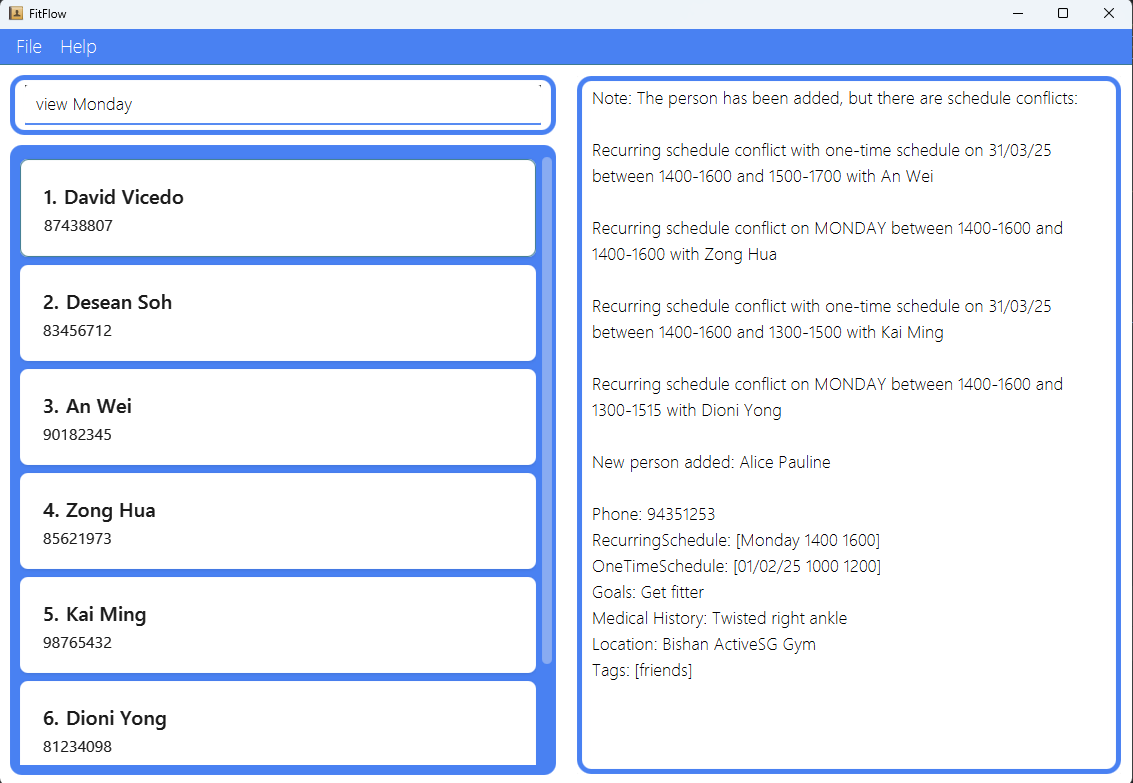
A GUI similar to the below should appear in a few seconds. Note how the app contains some sample data.
- If the above does not work, try the below steps:
-
Type the command in the command box and press Enter to execute it. e.g. typing
helpand pressing Enter will display the list of available commands in FitFlow.
Some example commands you can try:-
add n/John Doe p/81234567: Adds a client namedJohn Doeto FitFlow. -
add n/Alice Pauline p/94351253 rs/Mon 1400 1600 ots/1/2 1000 1200 g/Get fitter mh/Twisted right ankle l/Bishan ActiveSG Gym t/friends: Adds a client namedAlice Paulinewith many details such as her schedule, fitness goal, medical history and location. -
find John Doe: Finds clients whose names match ‘John’ or ‘Doe’ and shows their name and phone number in the Client List. The Output Box will show the number of clients found by the application. -
view monday: Displays the schedules the personal trainer has with the clients on that day. -
view 17/2/25: Displays the schedules the personal trainer has with the clients on that day. -
edit 1 p/81234567 rs/Tue 1600 1800 g/Do 10 pull ups: Edits the details of the 1st client shown in the current list. -
delete 3: Deletes the 3rd client shown in the current list. -
help: Displays the list of available commands the user can use in FitFlow. -
help /add: Displays the format for the specific command in FitFlow. -
list: Lists all clients. -
clear: Deletes all clients. -
exit: Exits FitFlow app.
-
- Refer to the Features below for details of each command.
Guided Tutorial
To get a feel for the app before actually starting to use it, check out our Guided Tutorial.
Features
 Tips about the command format:
-
Words in
UPPER_CASEare the parameters to be supplied by the user.
e.g. inadd n/NAME,NAMEis a parameter which can be used asadd n/John Doe. -
Items in square brackets are optional.
e.g.n/NAME [t/TAG]can be used asn/John Doe t/friendor asn/John Doe. -
Items with
… after them can be used multiple times including zero times.
e.g.[t/TAG]…can be used ast/friend,t/friend t/familyetc. -
Parameters can be in any order.
e.g. if the command specifiesn/NAME p/PHONE_NUMBER,p/PHONE_NUMBER n/NAMEis also acceptable. -
Extraneous parameters for commands that do not take in parameters (such as
list,exitandclear) will be ignored.
e.g. if the command specifieslist 123, it will be interpreted aslist. -
If you are using a PDF version of this document, be careful when copying and pasting commands that span multiple lines as space characters surrounding line-breaks may be omitted when copied over to the application.
Help : help
Displays the description and formatting of commands in FitFlow.
Format: help [/COMMAND_NAME]
- Display all the available commands in FitFlow.
- Displays a specific command and will give the specific description and formatting for that command.
Examples:
-
helpwill display the description of all the available commands in FitFlow. -
help /addwill display the command description and formatting for the add command in FitFlow.
Invalid Examples:
-
help add: Missing slash before command. Usehelp /add.
Adding a client: add
Adds a client to FitFlow.
Format: add n/NAME p/PHONE_NUMBER [rs/RECURRING_SCHEDULE]… [ots/ONE_TIME_SCHEDULE]… [g/GOALS] [mh/MEDICAL_HISTORY] [l/LOCATION] [t/TAG]…
Tip:- A client can have any number of recurring schedule, one time schedule, or tags (including 0).
Note:
- A client should have at least have a name and a phone number to be added.
- A client is uniquely identified by their name. Thus, you cannot add two clients with the exact same name, regardless of case (i.e. john doe cannot be added with John Doe already in the client list).
The reason for this is so that you will not be confused on which client is which when trying to look for their details. You must differentiate them in some way before adding. - Any date provided that excludes year will be treated as a date in the current year.
- A client with a recurring schedule or one time schedule that conflicts internally or with other clients’ schedules will still be added.
- Use the edit command to rectify any conflicting schedules.
- For
NAME,GOALS,MEDICAL_HISTORY,LOCATION, andTAG, these fields accept all ASCII characters. - For
PHONE_NUMBER, any 8-digit number starting with 6, 8, or 9 is accepted. - For
RECURRING SCHEDULE, use the formatDAY START_TIME END_TIME.-
DAYcan be any day of the week i.e.Monday. You can use 3-letter short-form days as well i.e.Mon. -
START_TIMEandEND_TIMEshould be 4 digits, in 24-hour format.
-
- For
ONE_TIME_SCHEDULE, use the formatDATE START_TIME END_TIME.-
DATEshould be in the format[D]D/[M]M[/YY].- The day and month of the date can have its leading
0omitted if it is single digit. - The year of the date can be omitted. In this case, the application will assume the current year.
- The day and month of the date can have its leading
-
START_TIMEandEND_TIMEshould be 4 digits, in 24-hour format.
-
- To rectify a client’s conflicting schedules, refer to the
editsection.
Examples:
- This command adds a client who is your friend named Alice Pauline who has the phone number 94351253. She has weekly sessions on Monday from 1400 to 1600, and a standalone appointment on 1st February this year. She wants to get fitter after she twisted her right ankle. You will be having training with her at the Bishan ActiveSG Gym.
add n/Alice Pauline p/94351253 rs/Mon 1400 1600 ots/1/2 1000 1200 g/Get fitter mh/Twisted right ankle l/Bishan ActiveSG Gym t/friends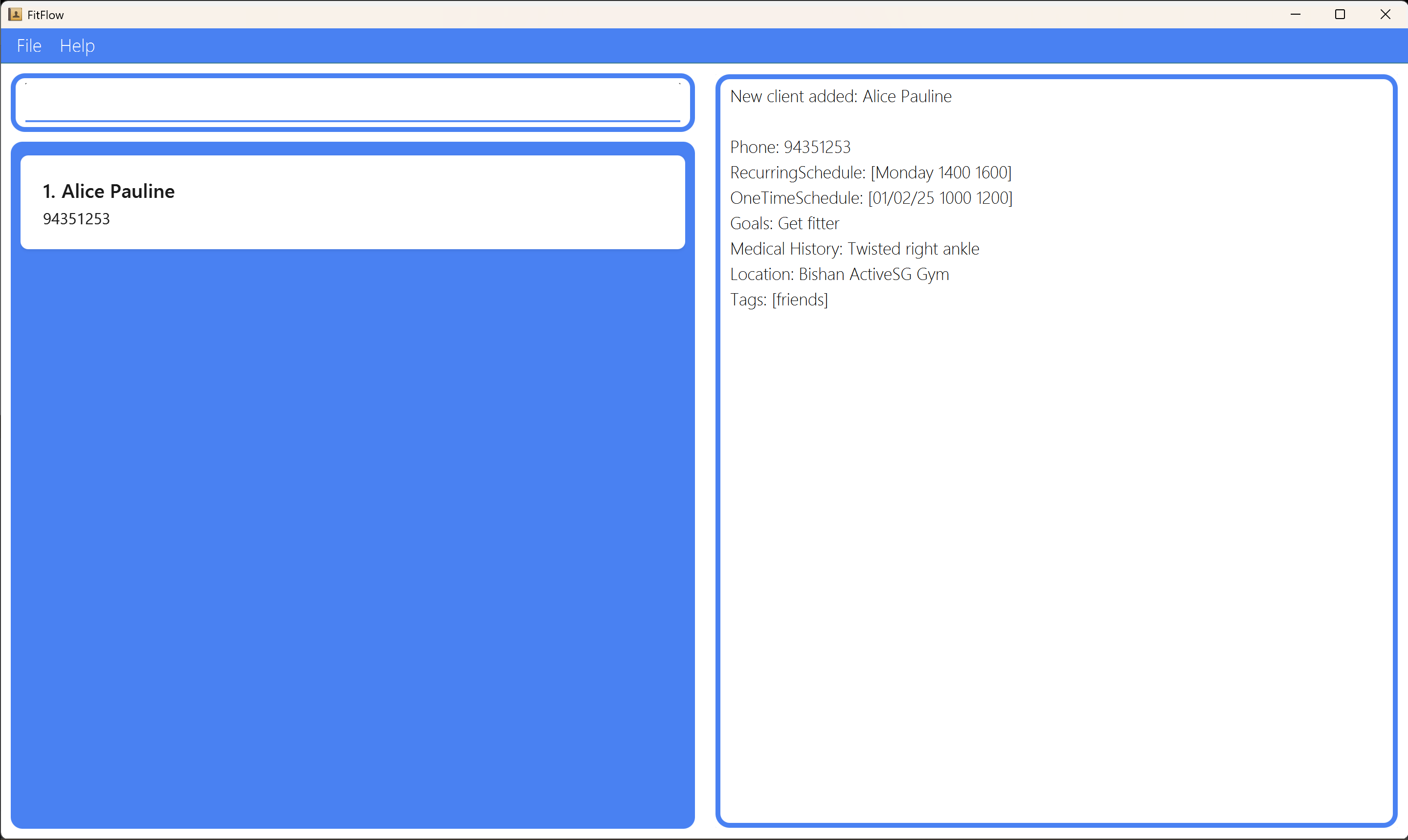
add n/Betsy Crowe t/friend g/Lose weight l/Jurong GymBox p/91234567 mh/Lower back injury rs/Wed 1500 1700 rs/Fri 1200 1330
Invalid Examples:
-
add n/John: Missing required fieldp/PHONE_NUMBER. -
add p/81234567: Missing required fieldn/NAME. -
add n/John Doe p/12345678: Invalid phone number: must be 8 digits and start with 6, 8, or 9. -
add n/John Doe p/81234567 rs/Monday 9am 11am: Invalid time format: must be 4-digit 24-hour format like0900. -
add n/John Doe p/81234567 rs/Mon 1600: Missing end time in recurring schedule. -
add n/John Doe p/81234567 ots/30/2 1000 1200: Invalid date: 30th February does not exist.
Listing all clients: list
Always shows a list of all the clients in FitFlow, regardless of any previous commands that might have filtered the list.
Format: list
Examples:
-
listdisplays and indexes all the clients in FitFlow. - If the list has been filtered because of the
findcommand, you can use thelistcommand to display the full list of clients again.
Locating clients by name: find
Find clients whose names contain any of the given keywords, showing them in the Client List on the left.
You can then use display to display the details of the client you want.
Format: find KEYWORD [MORE_KEYWORDS]
- The search is case-insensitive. e.g.
hanswill matchHans. - The order of the keywords does not matter. i.e.
Hans Bowill matchBo Hans. - You do not need to include the name tag in the keyword, e.g. if you want to search for the name ‘Alex’ it should be
find Alexand notfind n/Alex. - Only the name is searched.
- Only the name and contact number of the client will be displayed. To see a client’s full details, refer to the
displaysection. - Only full words will be matched i.e.
Hanwill not matchHans. - Clients matching at least one keyword will be returned (i.e.
ORsearch). i.e.Hans Bowill returnHans Gruber,Bo Yang.
Examples:
-
find JohnreturnsjohnandJohn Doe. -
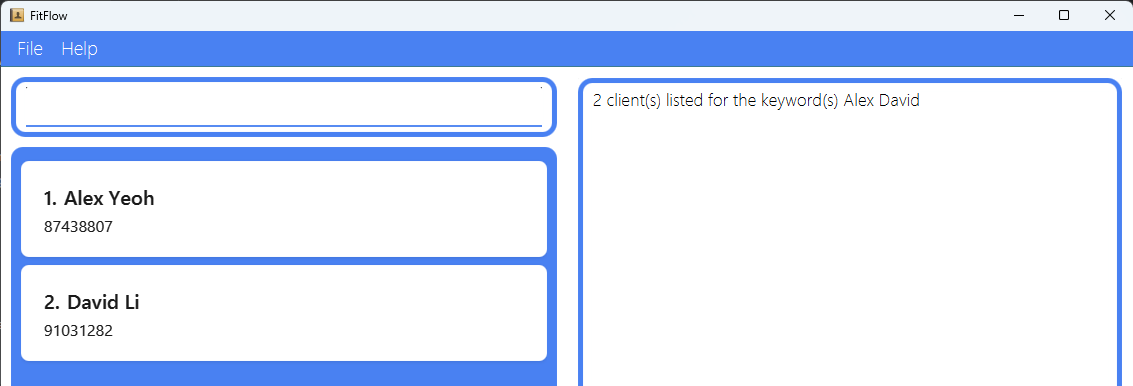
find alex davidreturnsAlex Yeoh,David Li.
Invalid Examples:
-
find: No keywords provided.
Displaying a client’s details: display
Display a client’s full details in the client list, identified by the index number used in the displayed client list.
Format: display INDEX
Note:
- Can be used in conjunction with
-
listto show a list of all the clients.
-
findto filter the clients based on the keyword.
-
viewto filter the clients based on day/date of the schedule.
-
- Displays the client at the specified
INDEX. - The index refers to the index number shown in the displayed client list.
- The index must be a positive integer 1, 2, 3, ….
Examples:
-
display 5will display the details of the person at index 5. -
view Monfollowed bydisplay 1displays the details of the 1st client in the results of thefindcommand. -
find alex davidfollowed bydisplay 1displays the details of the 1st client in the results of thefindcommand.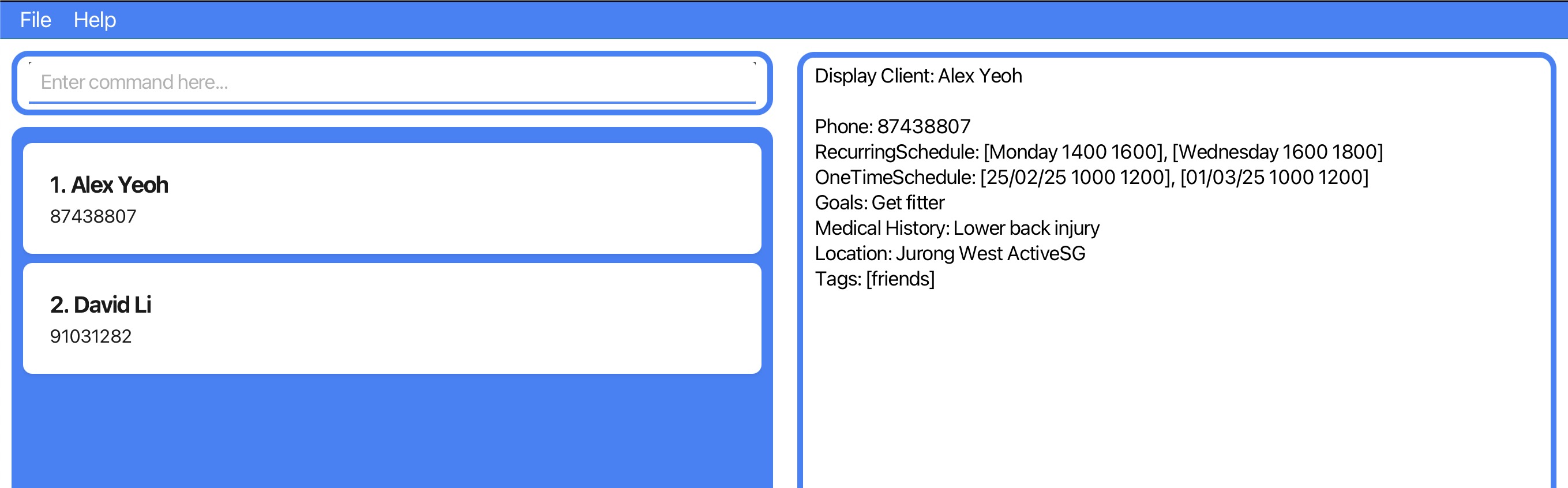
Invalid Examples:
-
display: Missing index. -
display zero: Index must be a positive integer. -
display -1: Negative index is invalid. -
display 999: Index out of bounds, no such client in the displayed list. (Assumption: There are lesser than 999 clients in the displayed list.)
Viewing Schedules: view
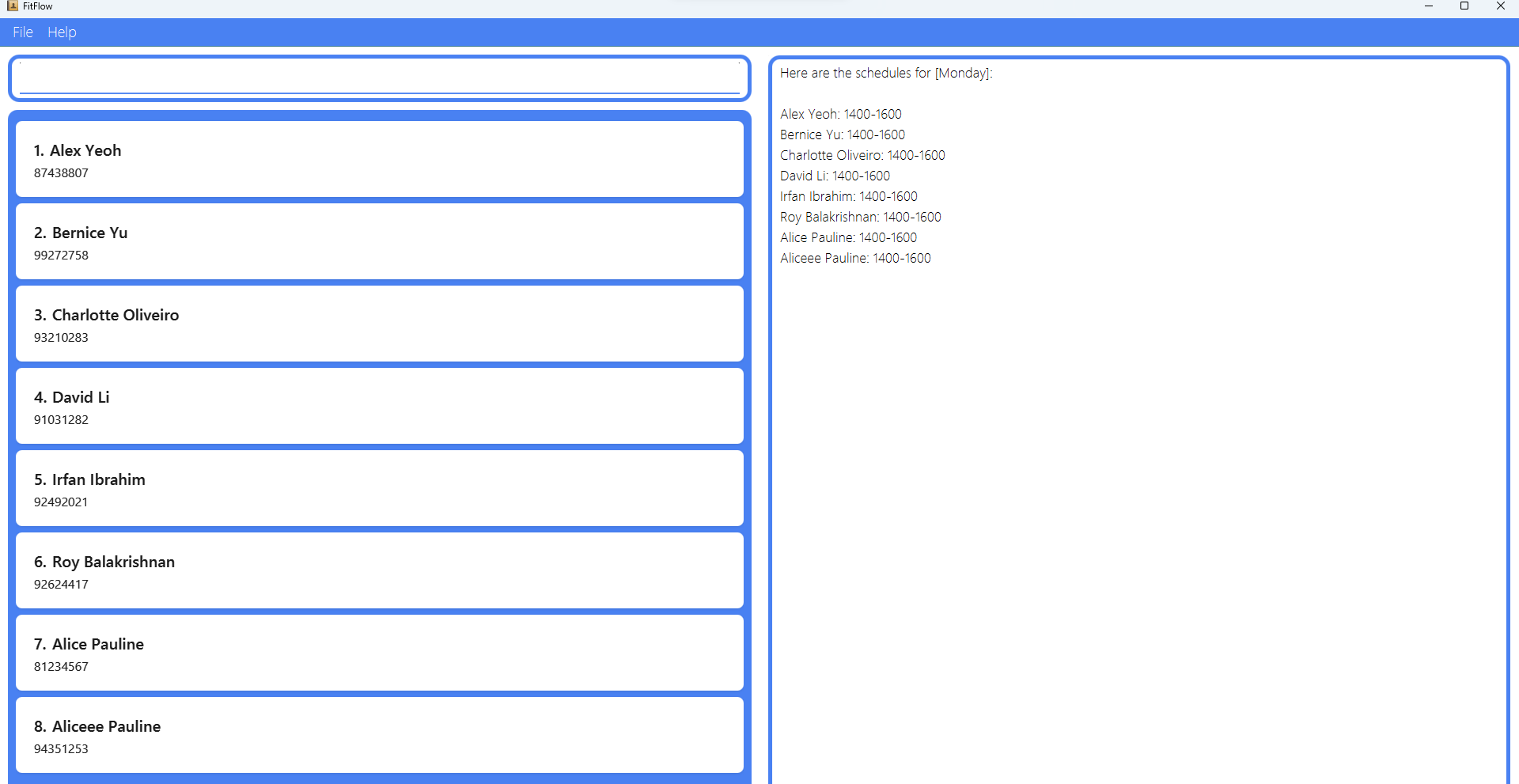
Displays the schedules the personal trainer has with clients on that day or date.
Format: view DAY/DATE
DAY Format: Monday or Mon
DATE Format: [D]D/[M]M[/YY]
Note:
- Any date provided that excludes year will be treated as a date in the current year.
- Viewing a day (i.e. Mon), will also return
ONE_TIME_SCHEDULEschedules in the coming Monday.
- The search is case-insensitive. i.e.
Mondaywill matchmonday. - A day or date field must be provided.
- For
DAY, 3-letter short-form is allowed, i.e.Mondaywill match withmon. Here are a list of acceptedDAYnames:
Monday,Tuesday,Wednesday,Thursday,Friday,Saturday,Sunday
Mon,Tue,Wed,Thu,Fri,Sat,Sun - For
DATE, the format has to be[D]D/[M]M[/YY]e.g.14/2matches with14/02/25and7/1/25matches with07/01/25.- The day and month of the date can have its leading
0omitted if it is single digit. - The year of the date can be omitted. In this case, the application will assume the current year.
- The day and month of the date can have its leading
Examples:
-
view Tuereturns the list of clients with schedules on Tuesday. -
view 25/02/25returns the list of clients with schedules on 25/02/25. -
view 21/04returns the list of clients with schedules on 21/04 in today’s year of usage. -
view Mondayreturns the list of clients with schedules on Monday.
Invalid Examples:
-
view: Missing argument: must specify a day or date. -
view Tueday: Misspelled day. Accepted values includeTuesdayorTue. -
view 31/4/25: Invalid date. Take note of the number of days in the month being entered. -
view 14/13/25: Invalid month.
Editing a client : edit
Edits an existing client in FitFlow.
Format: edit INDEX [n/NAME] [p/PHONE_NUMBER] [rs/RECURRING_SCHEDULE]… [ots/ONE_TIME_SCHEDULE]… [g/GOALS] [mh/MEDICAL_HISTORY] [l/LOCATION] [t/TAG]…
Note:
- Any date provided that excludes year will be treated as a date in the current year.
- A client with a recurring schedule or one time schedule that conflicts internally or with other clients’ schedules will still be added.
- Use the edit command to rectify any conflicting schedules.
- When editing recurring schedules, one time schedules or tags, the existing parameters of the client will be removed i.e. it is not cumulative.
- Edits the client at the specified
INDEX. - The index refers to the index number shown in the displayed client list.
- The index must be a positive integer 1, 2, 3, ….
- At least one of the optional fields must be provided.
- Existing values will be updated to the input values.
- You can remove all the client’s recurring schedules, one time schedules and tags by typing
rs/,ots/, andt/respectively without specifying any value after it. - For more details on how each field should be formatted, refer to the
addsection.
Examples:
-
edit 1 p/91234567 l/Anytime Fitness ots/4/4 1200 1400Edits the phone number, location, and one time schedule of the 1st client to be91234567,Anytime Fitness, and4/4 1200 1400respectively.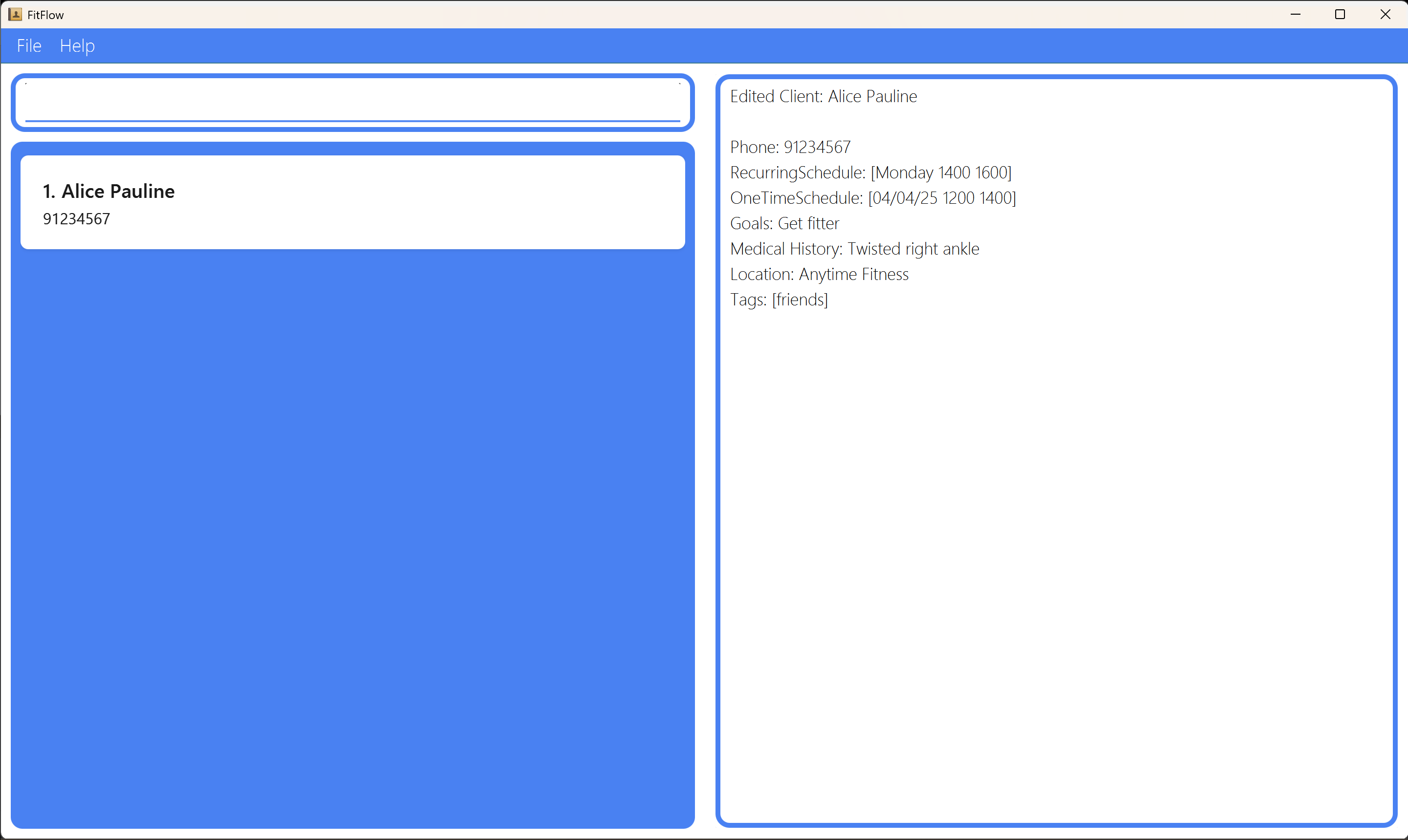
-
edit 2 n/Betsy Crower rs/ ots/ t/Edits the name of the 2nd client to beBetsy Crowerand clears all existing recurring schedules, one time schedules and tags.
Invalid Examples:
-
edit: Missing index. -
edit two: Index must be a positive integer. -
edit 1: No fields provided to update. -
edit 1 p/1234: Invalid phone number. -
edit 1 rs/Mon 1000: Incomplete recurring schedule (missing end time).
Deleting a client : delete
Deletes the specified client from FitFlow.
Format: delete INDEX
Caution:
This command is irreversible. Use with caution.
- Deletes the client at the specified
INDEX. - The index refers to the index number shown in the displayed client list.
- The index must be a positive integer 1, 2, 3, ….
Examples:
-
listfollowed bydelete 2deletes the 2nd client from FitFlow. -
find Betsyfollowed bydelete 1deletes the 1st client in the results of thefindcommand.
Invalid Examples:
-
delete: Missing index. -
delete abc: Index must be a positive integer. -
delete 100: Index out of bounds, no such client in current list. (Assumption: There are lesser than 100 clients in the displayed list.)
Exiting the program : exit
Exits the program.
Format: exit
Clearing all entries : clear
Clears all entries from FitFlow.
Format: clear
Caution:
This command is irreversible. Use with caution.
Saving the data
FitFlow data are saved in the hard disk automatically after any command that changes the data. There is no need to save manually.
Editing the data file
FitFlow data are saved automatically as a JSON file [JAR file location]/data/addressbook.json. Advanced users are welcome to update data directly by editing that data file.
FAQ
Q: How do I transfer my data to another Computer?
A: Install the app in the other computer and overwrite the sample data file it creates with the file that contains the data of your previous FitFlow home folder.
Known issues
-
When using multiple screens, if you move the application to a secondary screen, and later switch to using only the primary screen, the GUI will open off-screen. The remedy is to delete the
preferences.jsonfile created by the application before running the application again. -
If you minimize the Help Window and then run the
helpcommand (or use theHelpmenu, or the keyboard shortcutF1) again, the original Help Window will remain minimized, and no new Help Window will appear. The remedy is to manually restore the minimized Help Window. - The view command currently does not highlight conflicting schedules when used. This is known and will be rectified in a future to make it easier for client’s to rectify conflicting schedules. It is not prioritised as a user is still able to manually see and rectify conflicting schedules.
- The dates are only accepted if the year is in a 2-digit format, not in a 4-digit format. This is known and will be updated in a future update. It is not prioritised as it is unlikely that a user will save a schedule in a year earlier than 2000 and after 2100 for now.
- When editing recurring schedules, one time schedules or tags, the existing parameters of the client will be removed i.e. it is not cumulative. This is a known limitation and the behaviour will be adjusted in an update. It is not prioritised as the user can still add the fields manually.
- When adding or editing either one time schedules or recurring schedules, the given date/day and time may not be parsed due to additional whitespace characters between the date/day and time. (i.e. an
editcommand with the prefix and parameterrs/Monday 1400 1600orrs/Monday 1400 1600will display an error). This is a known limitation foraddandeditcommands when adding/editing clients with theots/prefix and/orrs/prefix. The remedy is to remove the additional whitespaces and ensure that there is only 1 whitespace separating the date/day and times. - Past one-time schedules that fall on the same day as a recurring schedule are reported as schedule conflicts. This is a known issue and will be addressed in a future update. It is not prioritised as it does not hinder the user’s ability to plan effectively—only future scheduling is typically relevant, and users can still interpret the conflict warnings accordingly.
-
If you open FitFlow and find the clients list to be unexpectedly empty despite having some saved clients prior to opening, the file storing the clients’ data is likely corrupted. This file can still be found at
data/addressbook.jsonfrom the directory FitFlow is located at. Inputting any command after discovering this issue will cause all remaining data in theaddressbook.jsonfile to be removed. The remedy is to assess the corrupted file’s contents and fill up any missing fields. - Our application only accepts Singaporean numbers which are 8 digits long and start with a 6, 8 or 9. It does not accept numbers that are more than 8 digits long or start with any other number besides 6, 8 or 9.
Command summary
| Action | Format, Examples |
|---|---|
| Help |
help [/add] [/list] [/edit] [/find] [/display] [/view] [/delete] [/clear] [/exit] e.g. help /add
|
| Add |
add n/NAME p/PHONE_NUMBER [rs/RECURRING_SCHEDULE]… [ots/ONE_TIME_SCHEDULE]… [g/GOALS] [mh/MEDICAL_HISTORY] [l/LOCATION] [t/TAG]… e.g. add n/Alice Pauline p/94351253 rs/Mon 1400 1600 ots/1/2 1000 1200 g/Get fitter mh/Twisted right ankle l/Bishan ActiveSG Gym t/friends
|
| List |
list e.g. list
|
| Find |
find KEYWORD [MORE_KEYWORDS] e.g. find John
|
| Display |
display INDEXe.g. display 2
|
| View |
view DAY/DATE e.g. view Monday
|
| Edit |
edit INDEX [n/NAME] [p/PHONE_NUMBER] [rs/RECURRING_SCHEDULE]… [ots/ONE_TIME_SCHEDULE]… [g/GOALS] [mh/MEDICAL_HISTORY] [l/LOCATION] [t/TAG]…e.g. edit 1 p/91234567 l/Anytime Fitness ots/4/4 1200 1400
|
| Delete |
delete INDEXe.g. delete 3
|
| Exit | exit |
| Clear | clear |