Developer Guide
- Acknowledgements
- Setting up, getting started
- Design
- Implementation
- Documentation, logging, testing, configuration, dev-ops
- Appendix: Requirements
- Appendix: Instructions for manual testing
-
Appendix: Planned Enhancements
- Use Case 2 - Step 1: Adding a new client and Use Case 7 - Step 2: Editing a client’s details
- Use Case 6 - Step 3: Prompting User for Delete confirmation
- Use Case 11-13: Adding, Editing and Removing a schedule for multiple clients
- Use Case 14 - Setting a reminder for a session
- Trim unnecessary whitespaces in parameters for One Time Schedules and Recurring Schedules
- Corrupt data file
- Foreign Phone Numbers
Acknowledgements
- Libraries used: JavaFX, Jackson, JUnit5.
- This project is based on the AddressBook-Level3 project created by the SE-EDU initiative.
Setting up, getting started
Refer to the guide Setting up and getting started.
Design
 Tip: The
 .puml files used to create diagrams in this document docs/diagrams folder. Refer to the PlantUML Tutorial at se-edu/guides to learn how to create and edit diagrams.
Architecture
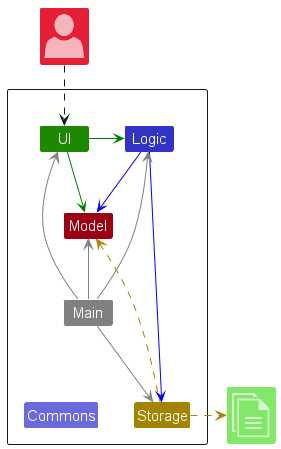
The Architecture Diagram given above explains the high-level design of the App.
Given below is a quick overview of main components and how they interact with each other.
Main components of the architecture
Main (consisting of classes Main and MainApp) is in charge of the app launch and shut down.
- At app launch, it initializes the other components in the correct sequence, and connects them up with each other.
- At shut down, it shuts down the other components and invokes cleanup methods where necessary.
The bulk of the app’s work is done by the following four components:
-
UI: The UI of the App. -
Logic: The command executor. -
Model: Holds the data of the App in memory. -
Storage: Reads data from, and writes data to, the hard disk.
Commons represents a collection of classes used by multiple other components.
How the architecture components interact with each other
The Sequence Diagram below shows how the components interact with each other for the scenario where the user issues the command delete 1.
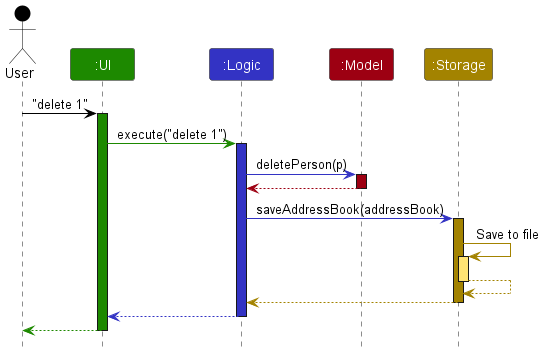
Each of the four main components (also shown in the diagram above),
- defines its API in an
interfacewith the same name as the Component. - implements its functionality using a concrete
{Component Name}Managerclass (which follows the corresponding API)interfacementioned in the previous point.
For example, the Logic component defines its API in the Logic.java interface and implements its functionality using the LogicManager.java class which follows the Logic interface. Other components interact with a given component through its interface rather than the concrete class (reason: to prevent outside component’s being coupled to the implementation of a component), as illustrated in the (partial) class diagram below.
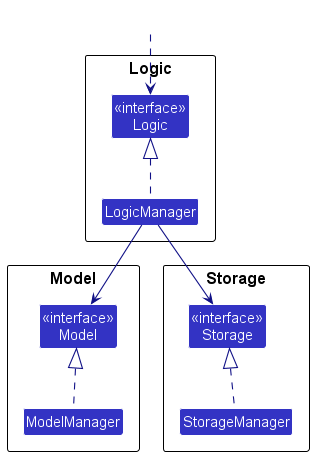
The sections below give more details of each component.
UI component
The API of this component is specified in Ui.java
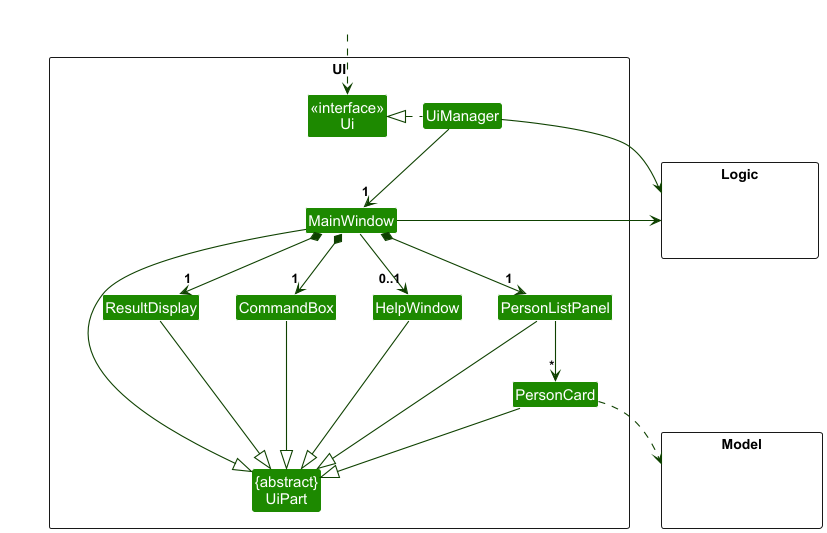
The UI consists of a MainWindow that is made up of parts e.g.CommandBox, ResultDisplay, PersonListPanel, StatusBarFooter etc. All these, including the MainWindow, inherit from the abstract UiPart class which captures the commonalities between classes that represent parts of the visible GUI.
The UI component uses the JavaFx UI framework. The layout of these UI parts are defined in matching .fxml files that are in the src/main/resources/view folder. For example, the layout of the MainWindow is specified in MainWindow.fxml
The UI component,
- executes user commands using the
Logiccomponent. - listens for changes to
Modeldata so that the UI can be updated with the modified data. - keeps a reference to the
Logiccomponent, because theUIrelies on theLogicto execute commands. - depends on some classes in the
Modelcomponent, as it displaysPersonobject residing in theModel.
Logic component
API : Logic.java
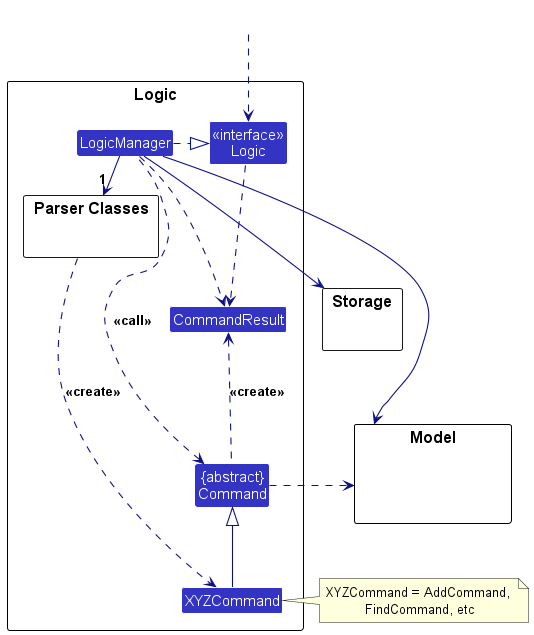
Here’s a (partial) class diagram of the Logic component:
The sequence diagram below illustrates the interactions within the Logic component, taking execute("delete 1") API call as an example.
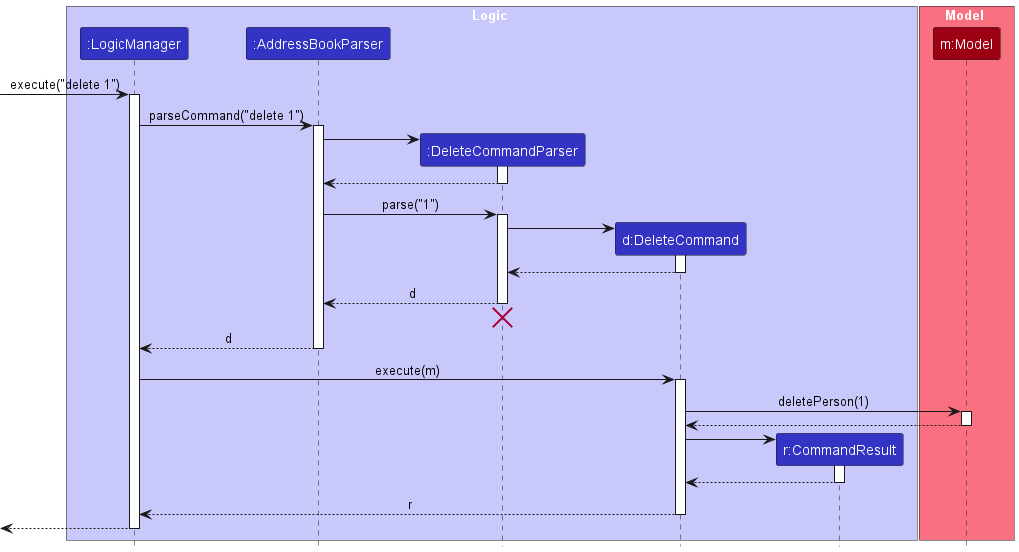
 Note: The lifeline for
 DeleteCommandParser should end at the destroy marker (X) but due to a limitation of PlantUML, the lifeline continues till the end of diagram.
How the Logic component works:
- When
Logicis called upon to execute a command, it is passed to anAddressBookParserobject which in turn creates a parser that matches the command (e.g.,DeleteCommandParser) and uses it to parse the command. - This results in a
Commandobject (more precisely, an object of one of its subclasses e.g.,DeleteCommand) which is executed by theLogicManager. - The command can communicate with the
Modelwhen it is executed (e.g. to delete a person).
Note that although this is shown as a single step in the diagram above (for simplicity), in the code it can take several interactions (between the command object and theModel) to achieve. - The result of the command execution is encapsulated as a
CommandResultobject which is returned back fromLogic.
Here are the other classes in Logic (omitted from the class diagram above) that are used for parsing a user command:
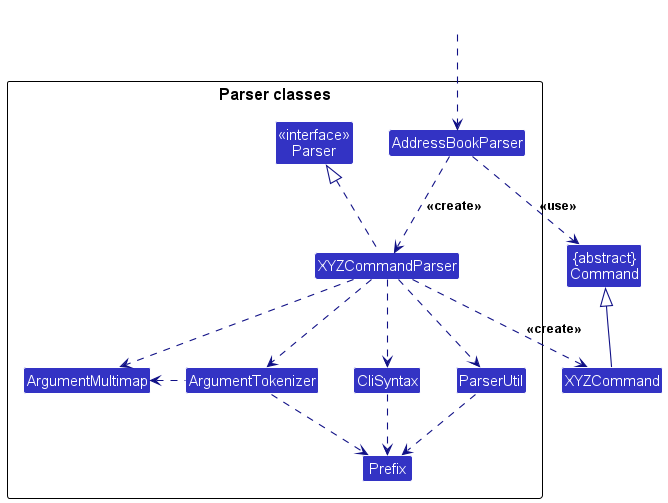
How the parsing works:
- When called upon to parse a user command, the
AddressBookParserclass creates anXYZCommandParser(XYZis a placeholder for the specific command name e.g.,AddCommandParser) which uses the other classes shown above to parse the user command and create aXYZCommandobject (e.g.,AddCommand) which theAddressBookParserreturns back as aCommandobject. - All
XYZCommandParserclasses (e.g.,AddCommandParser,DeleteCommandParser, …) inherit from theParserinterface so that they can be treated similarly where possible e.g, during testing.
Model component
API : Model.java
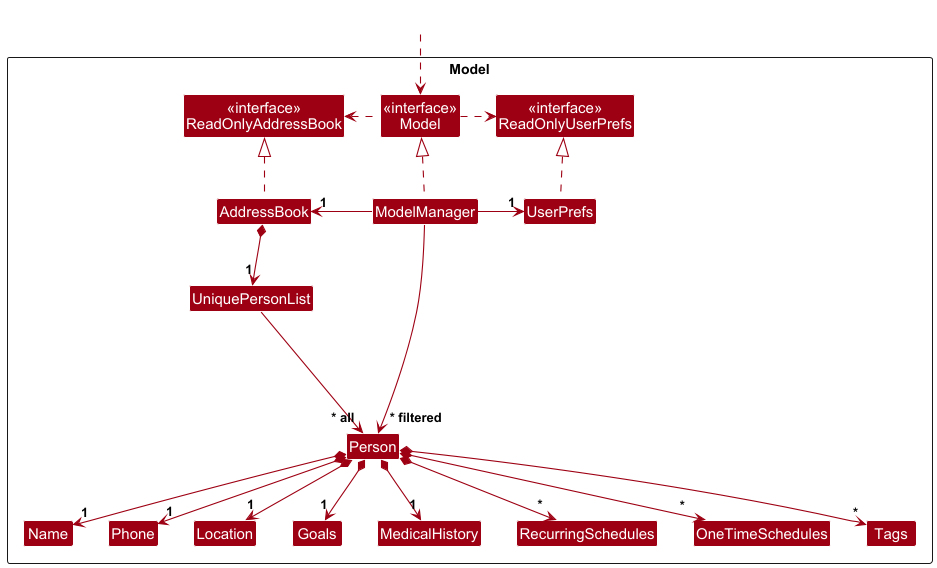
The Model component,
- stores the address book data i.e., all
Personobjects (which are contained in aUniquePersonListobject). - stores the currently ‘selected’
Personobjects (e.g., results of a search query) as a separate filtered list which is exposed to outsiders as an unmodifiableObservableList<Person>that can be ‘observed’ e.g. the UI can be bound to this list so that the UI automatically updates when the data in the list change. - stores a
UserPrefobject that represents the user’s preferences. This is exposed to the outside as aReadOnlyUserPrefobjects. - does not depend on any of the other three components (as the
Modelrepresents data entities of the domain, they should make sense on their own without depending on other components)
Note: An alternative (arguably, a more OOP) model is given below. It has a Tag list in the AddressBook, which Person references. This allows AddressBook to only require one Tag object per unique tag, instead of each Person needing their own Tag objects.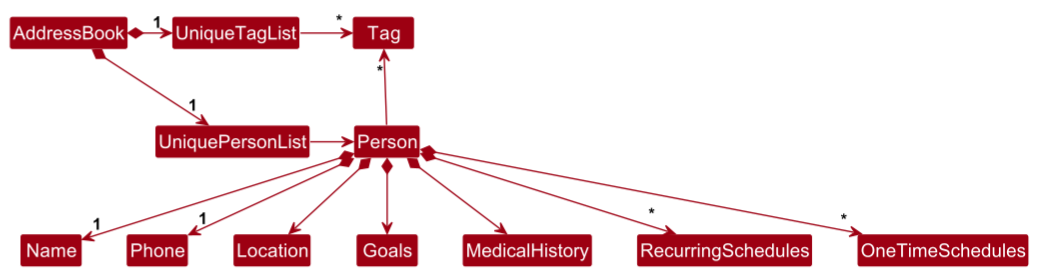
Storage component
API : Storage.java
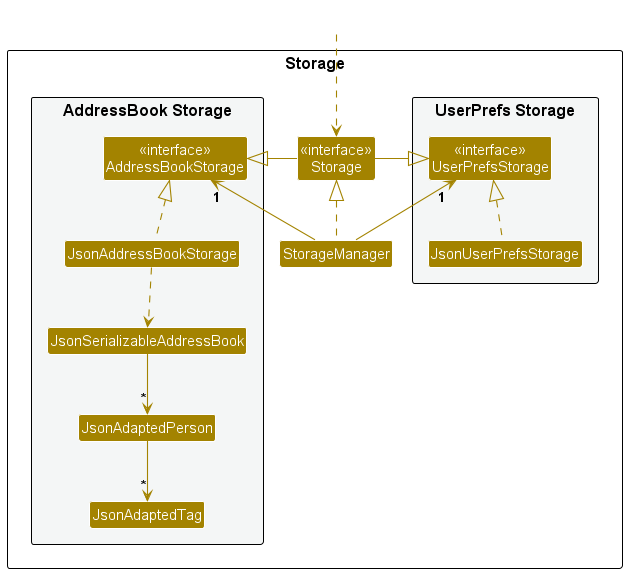
The Storage component,
- can save both address book data and user preference data in JSON format, and read them back into corresponding objects.
- inherits from both
AddressBookStorageandUserPrefStorage, which means it can be treated as either one (if only the functionality of only one is needed). - depends on some classes in the
Modelcomponent (because theStoragecomponent’s job is to save/retrieve objects that belong to theModel)
Common classes
Classes used by multiple components are in the seedu.address.commons package.
Implementation
This section describes some noteworthy details on how certain features are implemented.
Using Help within the application itself
The following activity diagram summarizes what happens when a user executes a help command:
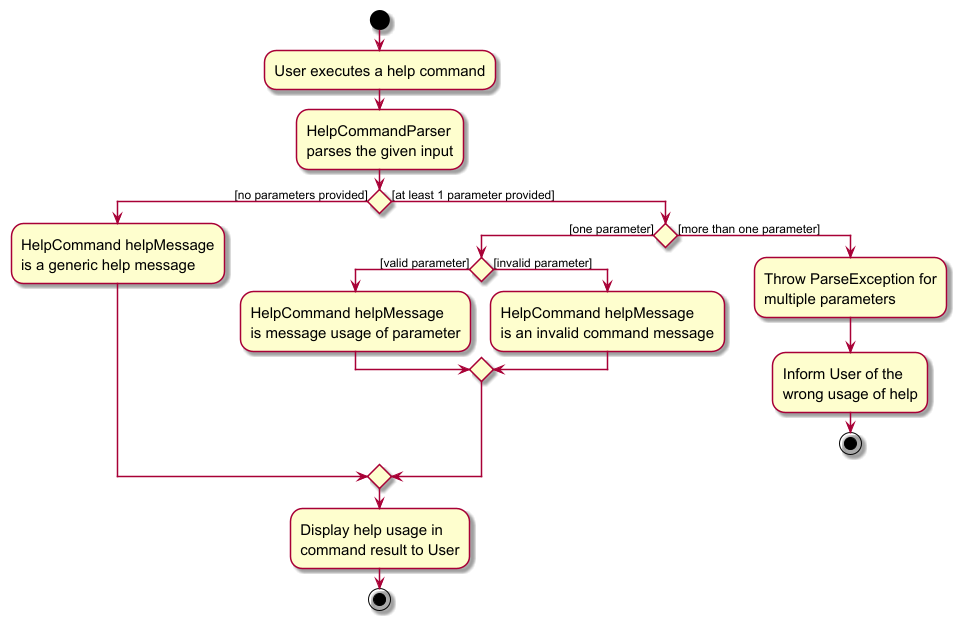
The command makes use of the / prefix to check for the parameters provided. If the parameter is valid (meaning it is one of the other commands available in FitFlow), it will show the message usage of that command requested.
Adding/Editing a Client
The following activity diagram summarizes the workflow of when a client is added or edited in FitFlow.
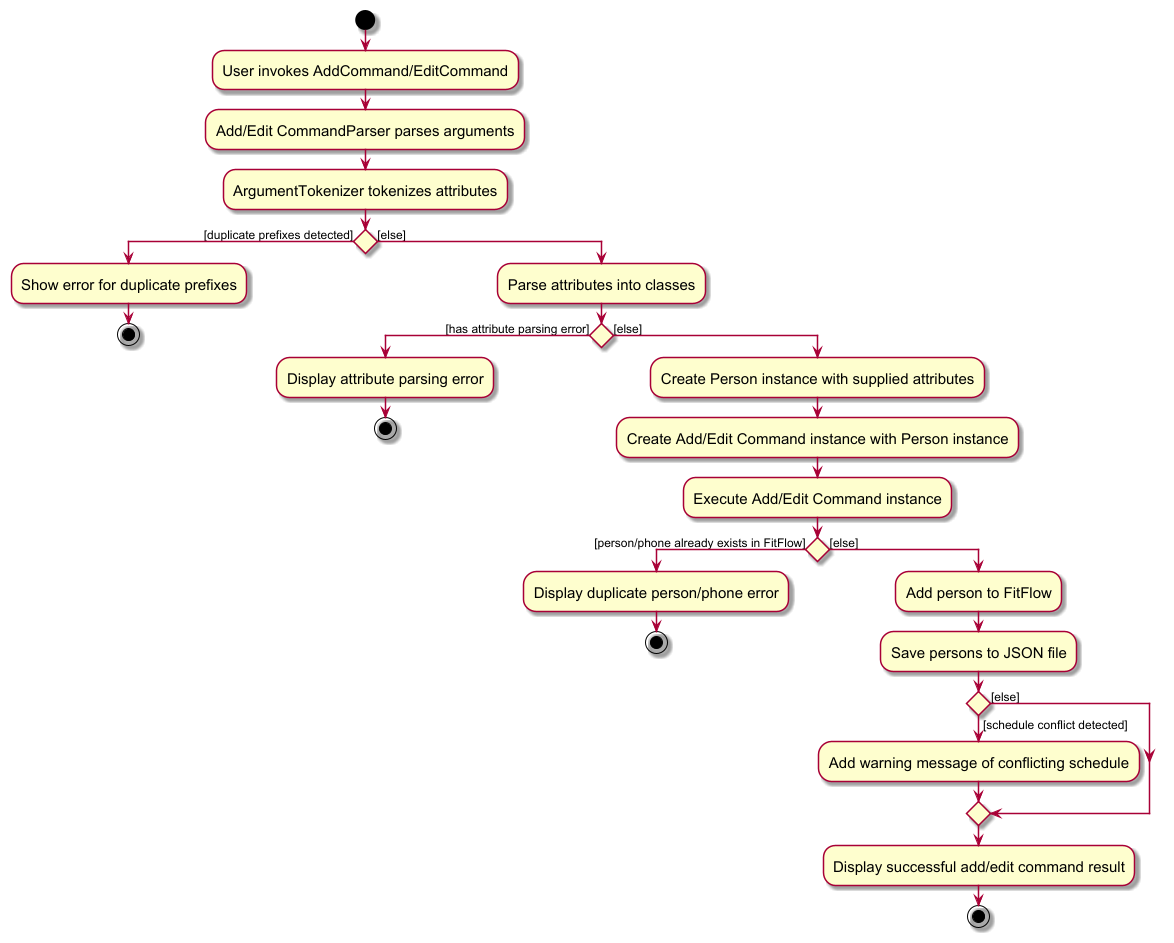
The commands check for schedule conflicts between the client being added/edited and other existing clients stored in FitFlow and warns the user of any such conflicting timings.
Using View within the application itself
The following activity diagram summarizes what happens when a user executes a view command:
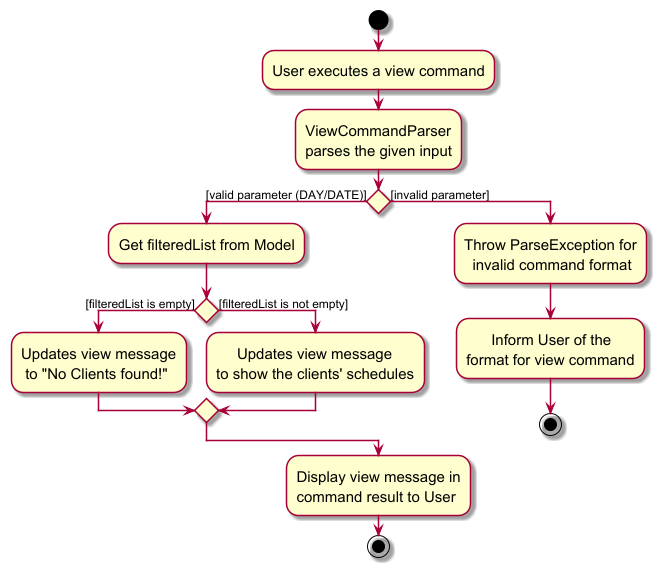
The command takes in a DAY/DATE parameter. If the parameter is valid, it will list the clients’ schedules for the given day or date.
Using Display within the application itself
The following activity diagram summarizes what happens when a user executes a display command:
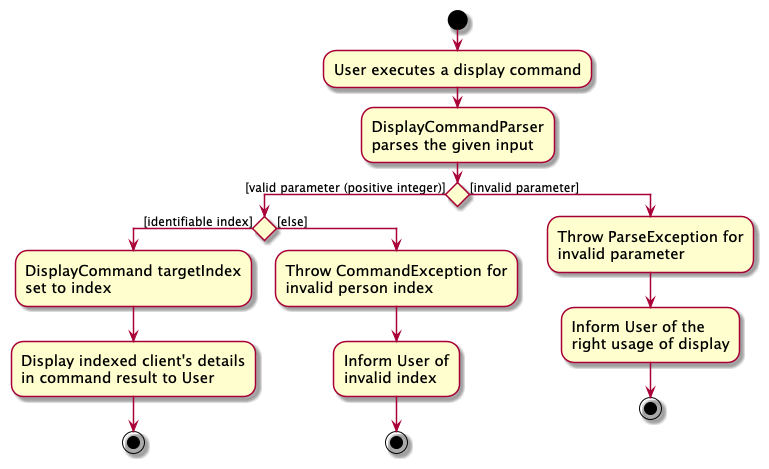
The command takes in a positive integer parameter. If the parameter is valid (meaning it is less than or equal to the number of clients), it will display the client’s details at the index.
[Proposed] Undo/redo feature
Proposed Implementation
The proposed undo/redo mechanism is facilitated by VersionedAddressBook. It extends AddressBook with an undo/redo history, stored internally as an addressBookStateList and currentStatePointer. Additionally, it implements the following operations:
-
VersionedAddressBook#commit()— Saves the current address book state in its history. -
VersionedAddressBook#undo()— Restores the previous address book state from its history. -
VersionedAddressBook#redo()— Restores a previously undone address book state from its history.
These operations are exposed in the Model interface as Model#commitAddressBook(), Model#undoAddressBook() and Model#redoAddressBook() respectively.
Given below is an example usage scenario and how the undo/redo mechanism behaves at each step.
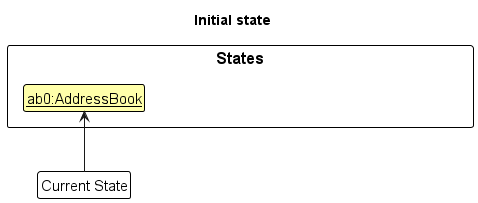
Step 1. The user launches the application for the first time. The VersionedAddressBook will be initialized with the initial address book state, and the currentStatePointer pointing to that single address book state.
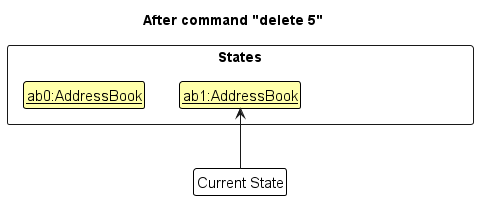
Step 2. The user executes delete 5 command to delete the 5th person in the address book. The delete command calls Model#commitAddressBook(), causing the modified state of the address book after the delete 5 command executes to be saved in the addressBookStateList, and the currentStatePointer is shifted to the newly inserted address book state.
Step 3. The user executes add n/David … to add a new person. The add command also calls Model#commitAddressBook(), causing another modified address book state to be saved into the addressBookStateList.
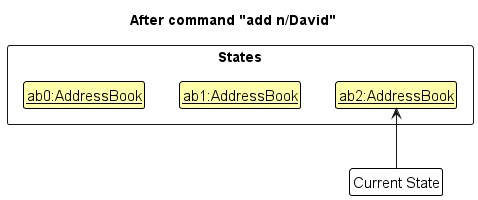
Note: If a command fails its execution, it will not call Model#commitAddressBook(), so the address book state will not be saved into the addressBookStateList.
Step 4. The user now decides that adding the person was a mistake, and decides to undo that action by executing the undo command. The undo command will call Model#undoAddressBook(), which will shift the currentStatePointer once to the left, pointing it to the previous address book state, and restores the address book to that state.
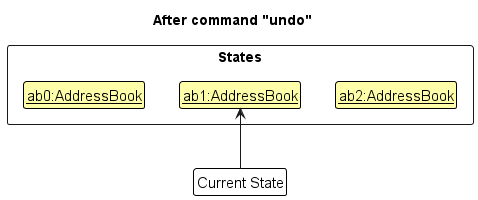
Note: If the currentStatePointer is at index 0, pointing to the initial AddressBook state, then there are no previous AddressBook states to restore. The undo command uses Model#canUndoAddressBook() to check if this is the case. If so, it will return an error to the user rather
than attempting to perform the undo.
The following sequence diagram shows how an undo operation goes through the Logic component:
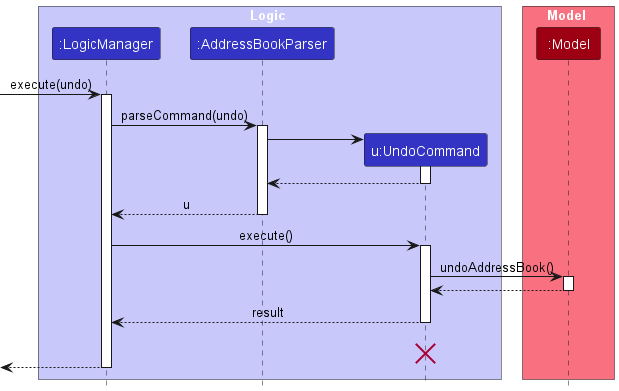
Note: The lifeline for UndoCommand should end at the destroy marker (X) but due to a limitation of PlantUML, the lifeline reaches the end of diagram.
Similarly, how an undo operation goes through the Model component is shown below:
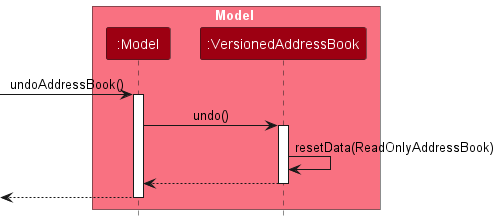
The redo command does the opposite — it calls Model#redoAddressBook(), which shifts the currentStatePointer once to the right, pointing to the previously undone state, and restores the address book to that state.
Note: If the currentStatePointer is at index addressBookStateList.size() - 1, pointing to the latest address book state, then there are no undone AddressBook states to restore. The redo command uses Model#canRedoAddressBook() to check if this is the case. If so, it will return an error to the user rather than attempting to perform the redo.
Step 5. The user then decides to execute the command list. Commands that do not modify the address book, such as list, will usually not call Model#commitAddressBook(), Model#undoAddressBook() or Model#redoAddressBook(). Thus, the addressBookStateList remains unchanged.
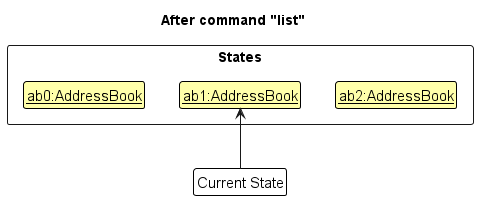
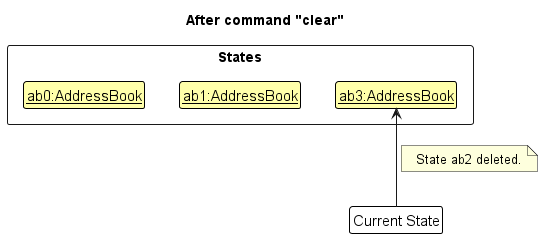
Step 6. The user executes clear, which calls Model#commitAddressBook(). Since the currentStatePointer is not pointing at the end of the addressBookStateList, all address book states after the currentStatePointer will be purged. Reason: It no longer makes sense to redo the add n/David … command. This is the behavior that most modern desktop applications follow.
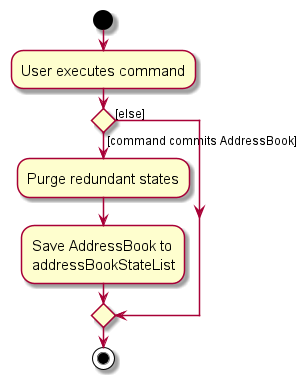
The following activity diagram summarizes what happens when a user executes a new command:
Design considerations:
Aspect: How undo & redo executes:
-
Alternative 1 (current choice): Saves the entire address book.
- Pros: Easy to implement.
- Cons: May have performance issues in terms of memory usage.
-
Alternative 2: Individual command knows how to undo/redo by
itself.
- Pros: Will use less memory (e.g. for
delete, just save the person being deleted). - Cons: We must ensure that the implementation of each individual command are correct.
- Pros: Will use less memory (e.g. for
Documentation, logging, testing, configuration, dev-ops
Appendix: Requirements
Product scope
Target user profile:
- a professional personal trainer in Singapore helping clients achieve fitness goals
- needs to track and manage individual client goals
- creates and edits customised training plans based on client needs
- keeps track of client details (name, phone number, training days, goals, medical history and location)
- manages weekly schedule and multiple training locations across Singapore
- organise group workout sessions with clients who have similar exercise profiles and live close together
Value proposition: streamlines client management, workout planning, and scheduling, maximizing productivity
User stories
Priorities: High (must have) - * * *, Medium (nice to have) - * *, Low (unlikely to have) - *
| Priority | As a … | I want to … | So that I can… |
|---|---|---|---|
* * * |
user | add my clients’ contact details and location to the app | I can contact them easily if there are any changes in plans |
* * * |
user | add my clients’ workout goals in the app | I can easily plan workout routines for my clients |
* * * |
user | add my clients’ previous or existing injuries in the app | I can better plan exercises that avoid aggravating their injury |
* * * |
user | add my clients’ preferred location | I can collate a list of clients in the same area to train |
* * * |
user | sort my clients’ information to see if they match with my schedule | I can better plan the timing to train while I am free |
* * * |
new user | look at the onboarding/help section | I know the features the app provides and how to use them |
* * * |
new user | go through a guided tutorial from the application | learn the basic features of the app and test it out |
* * * |
user | view the schedule for each day | I can plan my day accordingly |
* * * |
user | update each clients’ details | I can make changes and keep things up to date with what happens IRL |
* * * |
user | view client’s preference on solo or group trainings | I can organise a joint training session to maximise productivity |
* * |
user | add recurring events for clients that have training on the same day every week | I don’t need to manually add and manage my schedule every single week |
* * |
user | be notified of a conflicting timeslot when I update a client’s timeslot | I know which timeslots are not available for my new clients |
* * |
user | delete client that I am not training anymore | the client list I have is not messy |
* * |
forgetful user | set reminders for training sessions | I do not forget or miss a training session with my client |
* * |
user | set goal deadlines for clients | I know which session to have a sit down with client |
* |
organized user | sort my clients chronologically | I will know which clients I will be meeting with soon. |
* |
user | sort my clients based on months or weeks | I can better plan for the clients that are in the upcoming months / weeks |
Use cases
(For all use cases below, the System is the FitFlow and the Actor is the User, unless specified otherwise)
Use case 1: View Application Usage
MSS
- The new user requests for help from Fit Flow to see the functionality of the application.
- FitFlow displays usage instructions for each function.
- The new user reads the instructions.
Use case ends.
Extensions
- 2a. User requests to see the specific help page for a command (e.g. help add).
- 2a1. FitFlow shows the User the specific command’s help text.
Use case resumes at step 3.
- 2a1. FitFlow shows the User the specific command’s help text.
Use case 2: Add Client
MSS
- User chooses to add a new client.
- FitFlow stores the details of the client and indicates success.
- The new client is added to the displayed client list.
Use case ends.
Extensions
- 1a. The client details are given in the wrong format.
- 1a1. FitFlow shows the user the format the client’s details should be entered.
- 1a2. User enters new data.
Steps 1a1-1a2 repeat until the data is entered.
Use case resumes at step 2.
- 1b. User provides a schedule timing that conflicts with an existing schedule timing.
- 1b1. FitFlow stores the details of the client.
- 1b2. FitFlow shows the existing schedule timing that conflicts with the given schedule timing, along with a warning.
Use case resumes at step 3.
Use case 3: Find Client
MSS
- User requests to find a specific client with a keyword.
- FitFlow shows the list of clients with the given keyword on the app.
Use case ends.
Extensions
- 1a. The client being searched for does not exist.
- 1a1. FitFlow shows an empty list of clients on the app.
Use case ends.
- 1a1. FitFlow shows an empty list of clients on the app.
- 1b. The keyword to find the client is empty.
- 1b1. FitFlow shows an error message and prompts the user the format of the command.
- 1b2. User re-enters the command.
Steps 1b1-1b2 repeat until the command is entered correctly.
Use case resumes at step 2.
Use case 4: View Schedule
MSS
- User requests to view their schedule on a specific day.
- FitFlow shows the list of clients that have a schedule for the specified day.
Use case ends.
Extensions
- 1a. The given day is invalid.
- 1a1. FitFlow shows an error message and prompts the user the format of the command.
- 1a2. User re-enters the command.
Steps 1a1-1a2 repeat until the command is entered correctly.
Use case resumes at step 2.
- 1b. No clients were found to have schedule on given day.
- 1b1. FitFlow tells the User that the schedule for the given day is empty.
Use case ends.
- 1b1. FitFlow tells the User that the schedule for the given day is empty.
Use case 5: Display Client’s details
MSS
- User requests to find client (Use Case 3) or view schedule (Use Case 4).
- User requests to display the specific client’s details.
- FitFlow shows the details of the client on the app.
Use case ends.
Extensions
- 2a. The client requested to display does not exist.
- 2a1. FitFlow tells the User that it was unable to get the specified client’s details.
Use case ends.
- 2a1. FitFlow tells the User that it was unable to get the specified client’s details.
- 2b. The given client is invalid.
- 2b1. FitFlow shows an error message and prompts the user the format of the command.
- 2b2. User re-enters the command.
Steps 2b1-2b2 repeat until the command is entered correctly.
Use case resumes at step 3.
Use case 6: Delete Client
MSS
- User requests to find client (Use Case 3) or find the client to delete from the displayed client list.
- User requests to delete the client.
- FitFlow shows the client’s details to be deleted and prompts the user to confirm the decision to delete.
- User confirms.
- FitFlow shows the details of the client that has been deleted.
Use case ends.
Extensions
- 1a. The list is empty.
Use case ends. - 2a. The given client is invalid.
- 2a1. FitFlow shows an error message and prompts the user the format of the command.
- 2a2. User re-enters the command.
Steps 2a1-2a2 repeat until the command is entered correctly.
Use case resumes at step 3.
- 4a. The user decides not to delete the client.
- 4a1. FitFlow aborts the delete command.
Use case ends.
- 4a1. FitFlow aborts the delete command.
Use case 7: Edit Client’s Details
MSS
- User requests to find client (Use Case 3) or find the client to edit from the displayed client list.
- User requests to edit the client’s details.
- FitFlow stores the new details of the client and indicates success.
Use case ends.
Extensions
- 1a. The list is empty.
Use case ends. - 2a. The given client is invalid or the client details are given in the wrong format.
- 2a1. FitFlow shows an error message and prompts the user the format of the command.
- 2a2. User re-enters the command.
Steps 2a1-2a2 repeat until the command is entered correctly.
Use case resumes at step 3.
- 2b. User provides a schedule timing that conflicts with an existing schedule timing.
- 2b1. FitFlow stores the details of the client.
- 2b2. FitFlow shows the existing schedule timing that conflicts with the given schedule timing, along with a warning.
Use case ends.
Use case 8: Add session to client
MSS
- User requests to find client (Use Case 3) or view schedule (Use Case 4).
- User requests to edit client’s details (Use Case 6) to add a session to the client.
- FitFlow stores the new session details to the client details.
Use case ends.
Extensions
- 1a. The schedule is empty.
Use case ends. - 2a. The given client is invalid or the session details are given in the wrong format.
- 2a1. FitFlow shows an error message and prompts the user the format of the command.
- 2a2. User re-enters the command.
Steps 2a1-2a2 repeat until the command is entered correctly.
Use case resumes at step 3.
Use case 9: Delete session from client
MSS
- User requests to find client (Use Case 3) or view schedule (Use Case 4).
- User requests to edit client’s details (Use Case 6) to delete a session from the client.
- FitFlow removes the session details from the client details.
Use case ends.
Extensions
- 1a. The schedule is empty.
Use case ends. - 2a. The given client is invalid or the session given is invalid.
- 2a1. FitFlow shows an error message and prompts the user the format of the command.
- 2a2. User re-enters the command.
Steps 2a1-2a2 repeat until the command is entered correctly.
Use case resumes at step 3.
Use case 10: Modify session details for client
MSS
- User requests to find client (Use Case 3) or view schedule (Use Case 4).
- User requests to edit client’s details (Use Case 6) to modify session details for the client.
- FitFlow stores the new session details for the client.
Use case ends.
Extensions
- 1a. The schedule is empty.
Use case ends. - 2a. The given client is invalid or the session details are given in the wrong format.
- 2a1. FitFlow shows an error message and prompts the user the format of the command.
- 2a2. User re-enters the command.
Steps 2a1-2a2 repeat until the command is entered correctly.
Use case resumes at step 3.
Use case 11: Add session for multiple clients
MSS
- User requests to add a session and includes the clients’ names involved with the session.
- FitFlow stores the new session details for each of the specified client.
Use case ends.
Extensions
- 2a. The given client(s) is invalid or the session details are given in the wrong format.
- 2a1. FitFlow shows an error message and prompts the user the format of the command.
- 2a2. User re-enters the command.
Steps 2a1-2a2 repeat until the command is entered correctly.
Use case resumes at step 3.
Use case 12: Delete session for multiple clients
MSS
- User requests to view schedule (Use Case 4) to find the session to delete.
- User requests to delete the specific session.
- FitFlow shows the session details and the clients involved in the session.
- FitFlow will prompt the user to confirm the decision to delete.
- User confirms.
- FitFlow removes the session details for each of the specified clients.
Use case ends.
Extensions
- 2a. The given client(s) is invalid or the session details are given in the wrong format.
- 2a1. FitFlow shows an error message and prompts the user the format of the command.
- 2a2. User re-enters the command.
Steps 2a1-2a2 repeat until the command is entered correctly.
Use case resumes at step 3.
- 5a. The user decides not to delete the session.
- 5a1. FitFlow aborts the delete session command.
Use case ends.
- 5a1. FitFlow aborts the delete session command.
Use case 13: Modify session for multiple clients
MSS
- User requests to view schedule (Use Case 4) to find the session to modify.
- User requests to modify the specific session with new details.
- FitFlow stores the new session details for the client.
Use case ends.
Extensions
- 2a. The given client(s) is invalid or the session details are given in the wrong format.
- 2a1. FitFlow shows an error message and prompts the user the format of the command.
- 2a2. User re-enters the command.
Steps 2a1-2a2 repeat until the command is entered correctly.
Use case resumes at step 3.
Use case 14: Set reminder for session
MSS
- User requests to view schedule (Use Case 4) to find a session to set a reminder.
- User requests to set a reminder for the specific session at a given timing before the session (e.g. 10 minutes).
- FitFlow stores a reminder for the specified session.
- FitFlow will prompt the user at the given timing before the session.
Extensions
- 2a. The given timing is invalid.
- 2a1. FitFlow shows an error message and prompts the user the format of the command.
- 2a2. User re-enters the command.
Steps 2a1-2a2 repeat until the command is entered correctly.
Use case resumes at step 3.
Non-Functional Requirements
User Requirements:
- A user with above average typing speed for regular English text (i.e. not code, not system admin commands) should be able to accomplish most of the tasks faster using commands than using the mouse.
- The program should be able to work locally on someone’s device, without any connection to the Internet.
- Someone who is a fast typist but isn’t familiar with command line interfaces should be able to pick up the application quickly.
- The GUI should be designed for resolutions 1920x1080 or higher, with scales 100% and 125%, and work well on them.
- The GUI should still be usable for resolutions 1280x720 and higher, and scales 150%.
Technical Requirements:
- Should work on any mainstream OS as long as it has Java 17 or above installed.
- The application should be contained within a single file, without the need for installation of extra dependencies.
- The system should work on both 32-bit and 64-bit environments.
Data requirements:
- Should be able to hold up to 1000 persons without a noticeable sluggishness in performance for typical usage.
- Data should be stored locally, in a human-readable and human-editable file.
Performance requirements:
- The application should be responsive to user input, and there shouldn’t be any input lag exceeding 1s.
Business/Domain rules:
- Each contact must have at least a name and contact number.
Notes about project scope:
- The application is not required to provide suggestions on schedules to the user.
- The application is meant for a single-user.
Glossary
- Mainstream OS: Windows, Linux, Unix, macOS
- Above Average Typing Seed: Refers to a user capable of typing text (in natural language) at a faster rate than the typical user, enabling quick entry of commands or form data.
- Client’s Details: This includes session details, training goals, medical history, gym location, and contact number.
- Command Line Interface (CLI): A text-based interface that accepts typed commands. Users interact with the application by entering commands, rather than by clicking or tapping on-screen elements.
- Contact: An individual entry in the system’s address book or database, typically including (at minimum) a name and contact number.
- Fast Typist (Fast Typing): A user who can input typed text swiftly, increasing overall efficiency when using a CLI-based or text-based system.
- Graphical User Interface (GUI): A visual, interactive interface that uses elements such as windows, buttons, and menus. Users interact by pointing, clicking, or tapping, rather than typing commands.
- Human-Editable Format: A data storage format (e.g., CSV, JSON, YAML) that can be opened in any text editor and modified directly by a human without needing specialized software or database tools.
- Human-Readable Format: A data storage format that is easily understood by users (e.g., structured text instead of proprietary binary formats). This makes it simpler for users to inspect or debug stored data.
- Input Lag: The delay between the user performing an action (e.g., typing a command, clicking a button) and the system responding. A well-optimized application keeps this delay under 1 second to feel “instant” to the user.
- Local Data Storage: Storing all user or application data on the same device that the application is running on. This setup does not require an internet connection or external servers.
- Performance Sluggishness: A noticeable delay in the application’s responsiveness, typically when dealing with large datasets or intense processing tasks. The requirement states that managing up to 1000 contacts should not cause any discernible slowdown.
- Scale Factor: The magnification or zoom level applied to on-screen elements (e.g., 100%, 125%, 150%). This is relevant for accessibility and ensuring proper display on high-resolution monitors.
- Screen Resolution: The pixel dimensions of the display (e.g., 1920×1080, 1280×720). Higher resolutions typically allow more UI elements to appear clearly on screen. The application must remain usable and visually clear at both high and moderate resolutions.
- Single-File Application: An application distributed as a single executable or JAR file, avoiding the need for extra installations or additional dependencies on the user’s system.
- Single-User Application: Intended for use by one person at a time, with no requirement for multi-user logins or collaborative functionality.
Appendix: Instructions for manual testing
Given below are instructions to test the app manually.
Note: These instructions only provide a starting point for testers to work on;
testers are expected to do more exploratory testing.
Launch and shutdown
-
Initial launch
-
Download the jar file and copy into an empty folder
-
Double-click the jar file
Expected: Shows the GUI with a set of sample contacts. The window size may not be optimum.
-
-
Saving window preferences
-
Resize the window to an optimum size. Move the window to a different location. Close the window.
-
Re-launch the app by double-clicking the jar file.
Expected: The most recent window size and location is retained.
-
-
Exit program
-
Enter the exit command. The window closes.
-
Double-click the jar file
Expected: Shows the GUI with contacts. The most recent window size and location is retained.
-
Deleting a client
-
Deleting a client while all clients are being shown
-
Prerequisites: List all clients using the
listcommand. Multiple clients in the list. -
Test case:
delete 1
Expected: First contact is deleted from the list. Details of the deleted contact is shown in the status message. -
Test case:
delete x(where x is larger than the list size)
Expected: No person is deleted. Error details of invalid client index shown in the status message. -
Test case:
delete 0
Expected: No person is deleted. Error details of incorrect format and right usage are shown in the status message. -
Other incorrect delete commands to try:
delete,delete y,...(where y is not a positive integer)
Expected: Similar to previous.
-
Displaying a client
-
Displaying a client while all clients are being shown
-
Prerequisites: List all clients using the
listcommand. Multiple clients in the list. -
Test case:
display 1
Expected: First contact is displayed from the list. Details of the client is shown in the status message. -
Test case:
display x(where x is larger than the list size)
Expected: No person is displayed. Error details of invalid client index shown in the status message. -
Test case:
display 0
Expected: No person is displayed. Error details of incorrect format and right usage are shown in the status message. -
Other incorrect display commands to try:
display,display y,...(where y is not a positive integer)
Expected: Similar to previous.
-
Finding a client
-
Finding a client in the client list
-
Test case:
find x(where x is a complete part of client’s name)
Expected: Client list only shows the contacts that contains the name. Number of clients listed is shown in the status message. -
Test case:
find x y(where x and y are complete part of different client’s name)
Expected: Client list only shows the contacts that contains the name. Number of clients listed is shown in the status message. -
Test case:
find z(where z is not part of any client’s name)
Expected: Client list is empty. ‘No clients listed’ message is shown in the status message.
-
Saving data
-
Dealing with missing data files
-
Prerequisites: Executed the FitFlow.jar file.
-
Open the FitFlow home folder. Delete the Data folder.
-
Double-click the jar file.
Expected: Shows the GUI with a set of sample contacts. The most recent window size and location is retained.
-
-
Dealing with corrupted data files
-
Prerequisites: Executed the FitFlow.jar file.
-
Open the FitFlow home folder. Open the Data folder. Open the addressbook.json.
-
In the open addressbook.json. Remove the curly bracket ({) at line 1. Close and Save the file.
-
Double-click the jar file
Expected: Shows the GUI without a set of sample contacts. The most recent window size and location is retained.
-
Appendix: Planned Enhancements
Team Size: 5
This section addresses the enhancements we plan to add to the application in the future. They address some of the features in our use cases that are not currently implemented within the application.
Use Case 2 - Step 1: Adding a new client and Use Case 7 - Step 2: Editing a client’s details
When a user adds a new client or edits an existing one, the application currently reports a conflict if a one-time schedule (that occurred in the past) falls on the same day as a recurring schedule. This is unnecessary, as such conflicts have no impact on future scheduling.
We plan to address this by suppressing conflict reports that involve past one-time schedules, ensuring that only future conflicts are flagged by the application.
To implement this, we will add a check to confirm that the one-time schedule being compared is set in the future before treating it as a conflict.
Use Case 6 - Step 3: Prompting User for Delete confirmation
When a client deletes a user, the application does so immediately without any confirmation. This can be undesirable, especially since the delete command uses indexes for deletion, which can be mistyped easily.
We plan to have a confirmation message show up in the output box, with details of the client (similar to those shown in display), so that the user can verify the client before deleting them from the app. After verification, they can then type ‘yes’ or ‘no’ to proceed with or stop the process.
This can be done with a new Confirmation class, which will hold information about the client to be deleted, and the code to delete the client in a nullary function (function that takes no arguments). Depending on whether the user inputs ‘yes’ or ‘no’, the Confirmation object will call the nullary function or finish the process without doing anything to the data.
Use Case 11-13: Adding, Editing and Removing a schedule for multiple clients
Currently, each session is associated to only 1 client. A trainer could have multiple clients in a schedule, which can not be represented with the application’s current set of features.
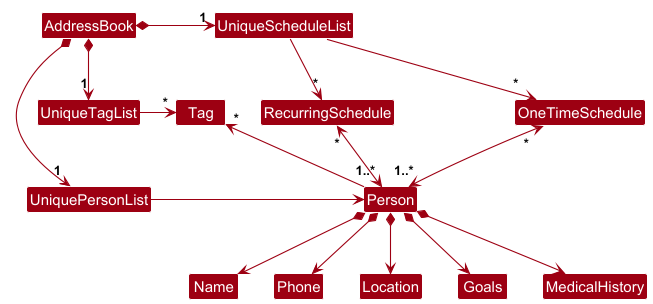
We plan to abstract schedules into a separate object that can also store a list of clients. So clients can be associated with multiple schedules, and each schedule can have multiple clients.
This can be done with a new UniqueScheduleList that is a singleton in the AddressBook, which contains all existing schedules of the user. Each schedule will be associated with 1 or more clients, while a client remains associated with 0 or more sessions. This will allow us to create a new command that can add/edit/delete a session for multiple clients at a time.
Below is a proposed class diagram of the association described in the previous line:
Use Case 14 - Setting a reminder for a session
Currently, the application does not support reminders for upcoming sessions, which may lead to missed appointments if the user forgets to check the schedule regularly.
We plan to implement a feature that allows users to set reminders for individual sessions. This will improve time management and ensure that trainers do not miss upcoming appointments.
To support this, each Schedule object will have an optional reminderDuration field (e.g., 10 minutes, 1 hour) that indicates how long before the session the reminder should be triggered. When the application is launched, it will check all upcoming sessions against the current system time. If any reminder falls within the configured window (e.g. now + 10 minutes), a reminder message will be displayed as part of the welcome output to notify the user.
This feature will help users stay informed about imminent sessions, especially useful for trainers with a busy or irregular schedule.
Trim unnecessary whitespaces in parameters for One Time Schedules and Recurring Schedules
When adding or editing either one time schedules or recurring schedules, the given date/day and time may not be parsed due to additional whitespace characters between the date/day and time. (i.e. an edit command with the prefix and parameter rs/Monday 1400 1600 or rs/Monday 1400 1600will display an error).
We intend to fix the parsing of one time schedules and recurring schedules by splitting the parameter given by the user with a different symbol like - or _, then using the trim() method to remove unnecessary whitespaces.
Corrupt data file
If the addressbook.json file is corrupted, FitFlow will open with an empty client list, while the corrupted addressbook.json file will remove all its previous data. FitFlow currently does not inform the user of the corrupted data nor does it fail gracefully.
We plan to show an error message when FitFlow recognises that the data file is corrupted. FitFlow should also move the corrupted file to another location to preserve it if the user wishes to restore the remaining data.
Foreign Phone Numbers
Our application right now only accepts Singaporean phone numbers which are 8 digits long and only start with the numbers 6, 8 or 9. However, we plan to expand these constraints so that our application also accepts foreign numbers which might be more than 8 digits long and can start with other numbers.
This can be done by changing the VALIDATION_REGEX in our phone class to accept a string of numbers with any length and that starts with any number.